Get Yacht Clubs Manager running at your club. Book a 20-minute walkthrough.
Most clubs arrive at Yacht Clubs Manager with a membership spreadsheet that has been passed between secretaries for years. It has columns nobody remembers adding, a few members listed twice, and at least one row that just says "see Dave". Moving club members off spreadsheets does not mean copying every one of those columns into a new system. It means getting three columns right and letting your members fill in the rest themselves.
This post is for the membership secretary or whoever is doing the move. It covers what the bulk invite needs, how to clean your list, what happens after you press send, and how to chase the people who don't respond.
The bulk invite needs three columns
Existing members come in through a bulk invitation. You upload an Excel or CSV file with exactly three columns, with the headings in the first row:
- First Name
- Last Name
Every row needs all three. That is the whole import. Addresses, phone numbers, boats, children's names and emergency contacts are not uploaded by the committee; each member adds their own when they accept the invitation. This is less work for you, and the details are more likely to be current, because the person they belong to has typed them in.
Before you invite anyone, make sure your membership types, their prices and your renewal settings are in place. When you review the list, you choose a membership type for each person, and if no renewal date has been set the console warns you that invited members will not be invoiced or renewed automatically. The first 30 days guide sets out the order.
Cleaning the list before you upload it
Make a copy of the old spreadsheet and work on the copy. Then go through these in turn.
Duplicates
Sort by email address and look for the same address twice. The upload will flag it anyway (you cannot send two invitations to one address), but it is easier to decide which row is right while you can still see the old columns next to it.
Families sharing one email address
This is the most common snag. In Yacht Clubs Manager, a household has one account: the member signs in and records their family members on their own profile. Family members do not get separate logins. So for a family membership, invite the person who looks after the club paperwork, once, and they add their partner and children during sign-up.
If two adults in the same house hold separate memberships, each needs their own email address, because each will have their own account and their own invoices.
Missing or out-of-date emails
Filter for blank email cells and for addresses that look wrong: old work addresses, obvious typos, a domain that no longer exists. Ask around the committee before launch day. Anyone left without an address can't go in the bulk upload, because every member account is tied to an email address. If they are part of a household, they can simply be recorded as a family member on that household's profile. If they are a member in their own right, you will need to find an address for them, perhaps with help from a relative, before they can have an account.
People who have left
Take lapsed and resigned members off the list rather than inviting them "just in case". Inviting someone who left three years ago is confusing for them, and holding their details without a reason is exactly what data protection law asks you not to do. There is more on that in GDPR for sailing club committees.
Reviewing before anything is sent
When you upload the file, nothing is emailed straight away. You get a review screen with every row, where you can:
- see which rows are valid and which have errors, and filter to just the errors
- fix a name or email in place, or remove a row
- set each person's membership type and join date
- tick Paid for anyone who has already paid this year's subscription another way, so they are not invoiced again on joining
Errors are flagged clearly: a missing field, an invalid email, the same address twice in the list, an address that already belongs to a member, or an invitation already pending. Only the valid rows are sent, and you can see the count on the send button before you press it.
The Paid tick matters if you are switching mid-year. Members who paid by cheque in April should not get a joining invoice in June. Ticked members are set up for next year's renewal as normal.
What members fill in themselves
Each person receives an email with a link that opens a step-by-step sign-up. Depending on what you have switched on for their membership type, they work through:
- personal and contact details
- family members
- emergency contacts
- qualifications
- boats, with sail numbers
- an insurance acknowledgement
- any sections your club has added
- a password, then a final review
You decide per membership type whether each step is hidden, optional or required. It is worth sharing the member's view of joining online with your members before the invitations arrive.
Chasing people who haven't signed up
An invitation link lasts 7 days. The Invitations tab lists everyone who has been invited, with the date sent, the expiry date and the status, so you can see at a glance who is still pending.
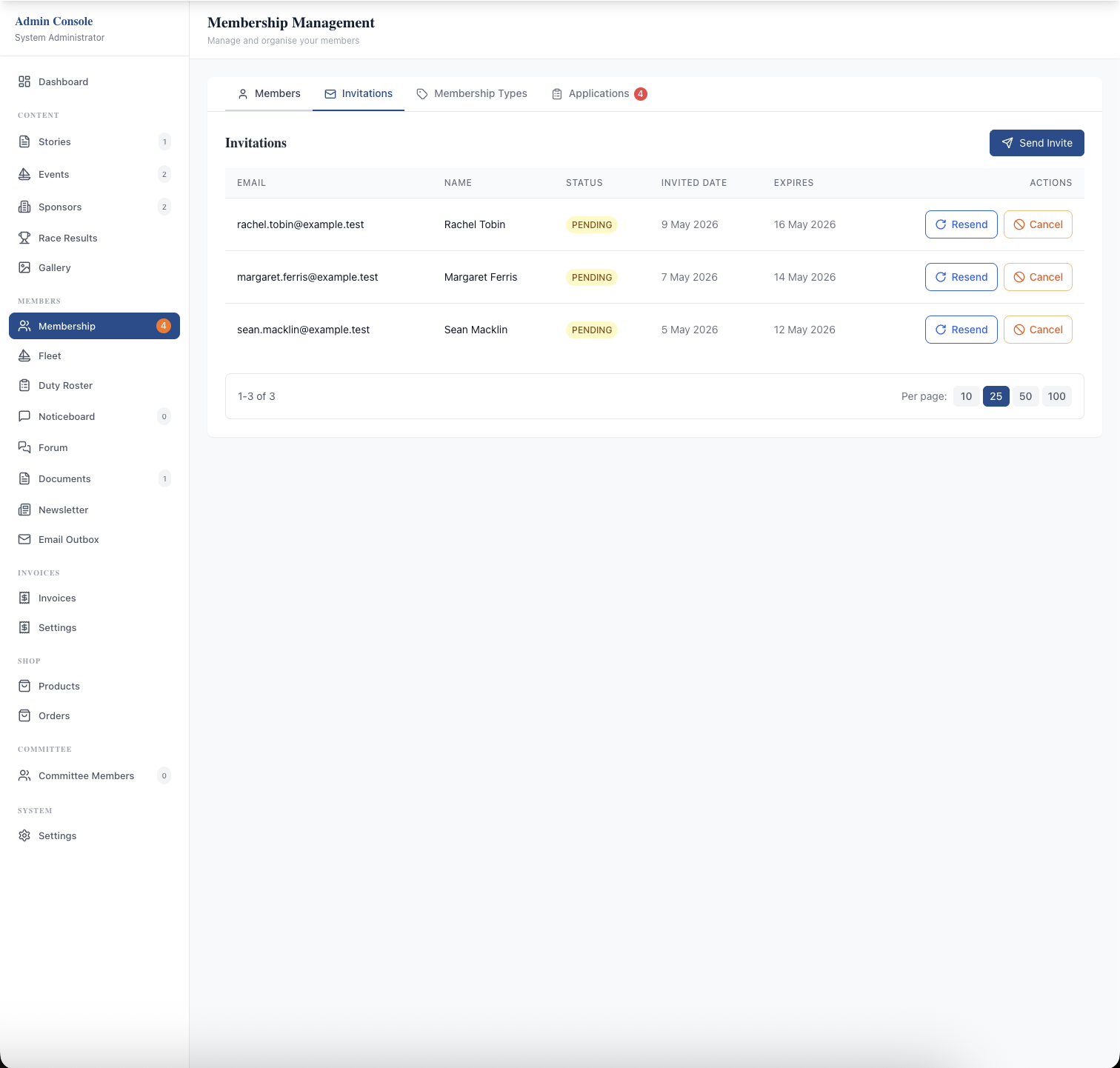
Pressing Resend emails the person a fresh link that lasts another 7 days, and it works whether the original invitation is still pending or has already expired. A cancelled invitation can't be resent; send a new one instead.
A simple chasing rhythm that works for many clubs:
- A few days after sending, a friendly reminder in whatever channel members already read.
- When invitations expire, resend them and mention it at the club.
- For the last few, a phone call or a word on the pontoon from someone they know.
For someone who really won't manage the sign-up, one of your club's administrators can add them directly and fill in their details on their behalf. They are emailed a temporary password, valid for 14 days, and choose a new one when they first sign in.
What to keep from the old spreadsheet
Once everyone is in, don't delete the old file on day one, but don't keep it forever either. Keep what you still need for a defined reason, such as payment history for the current financial year, until your treasurer has closed the books. Then archive or delete it according to your club's retention policy.
Leave behind the columns that no longer have a job: old phone numbers, "notes" fields full of opinions, dates of birth for adult members if you never use them. Members will record what is needed themselves, and anything you don't hold can't go out of date or leak.
To see how members are managed day to day once they are in, read about member management and custom application forms, or talk to us about your own list.
Like the read? See it running with your club's data — book a demo.