Get Yacht Clubs Manager running at your club. Book a 20-minute walkthrough.
You have decided to join, or your club has moved its membership online and asked you to set up your account. Either way, joining your sailing club online takes a few minutes spread over a few days: an application, a decision by the committee, an invitation email and a short sign-up. This guide goes through each step so you know what to expect and what to have to hand.
There are two routes in. If you are new to the club, you apply through the club's website. If you are already a member and the club is bringing everyone onto the new site, the committee will either send you an invitation or set up your account and email you a temporary password. Both are covered below.
Step 1: fill in the application form
Look for the join or apply page on your club's website. The form is headed Apply for Membership, and your club decides exactly what is on it, so it may differ a little from the example below. You will usually be asked for:
- your first and last name;
- your email address, typed twice to catch typos;
- a phone number, if the club asks for one;
- the membership type you are applying for, chosen from the club's own list;
- a few words about yourself and your sailing, if you want to add them.
Many clubs also ask for the names of a proposer and a seconder: existing members who support your application. You type their names into the form. The website does not contact them, so it is polite to let them know before you apply, as the committee may check with them.
Your club can add its own questions too. These might be a dropdown, a tick box, a date, or a file upload for something like a sailing certificate. Uploads can be PDFs, photos or Word documents up to 10MB.
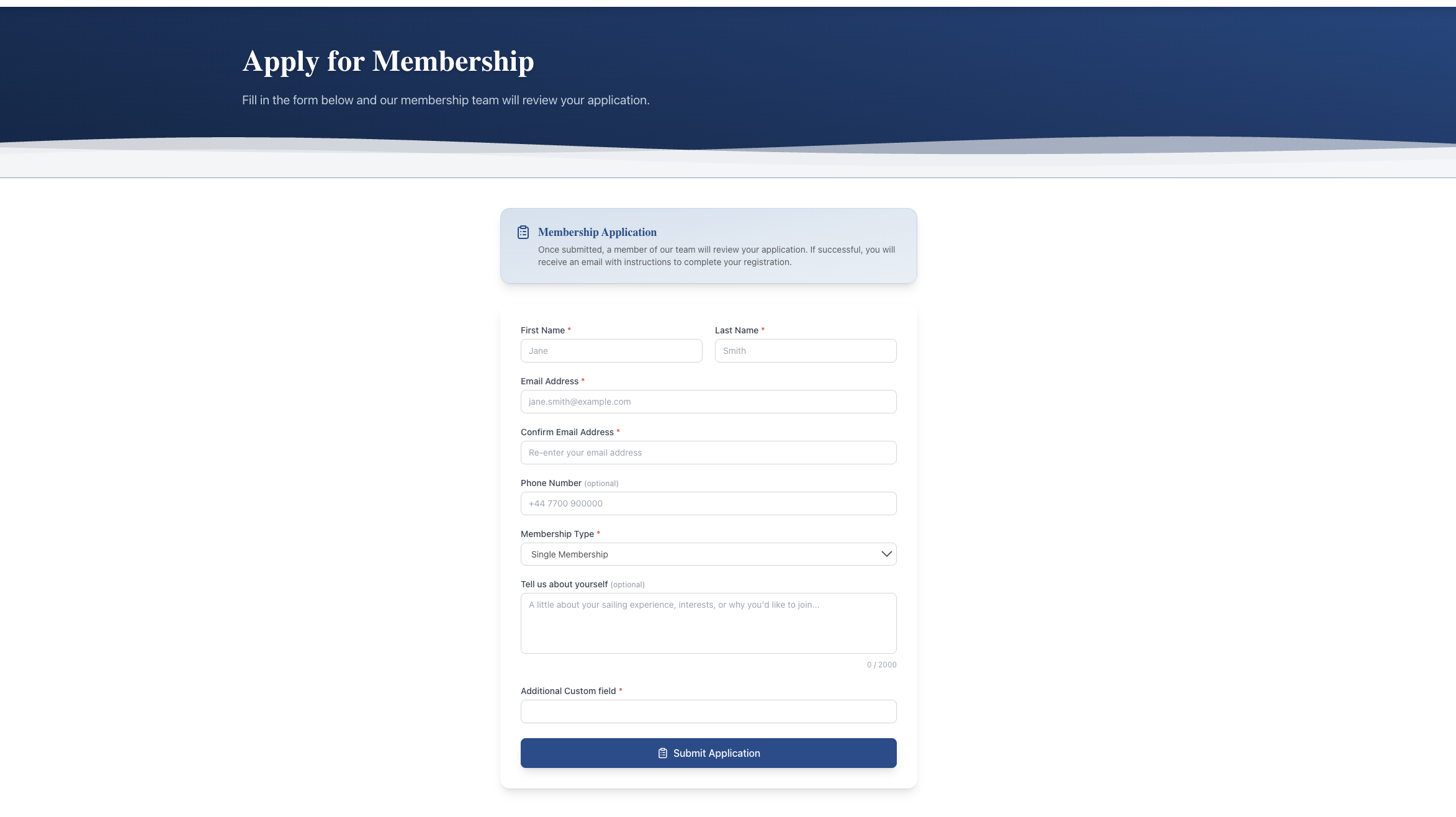
Press Submit Application. You will see a thank-you message on screen. You will not receive an email at this point, so do not worry if nothing arrives straight away.
If you get an error saying an application from your email is already pending, the club has your first one. If it says the email is already registered as a member, you already have an account: sign in instead, or use "Forgot Password?" on the members login.
Step 2: the committee decides
Your application goes to the club, where the membership secretary or committee reviews it in their own time and in line with the club's rules. Some clubs decide within days; others wait for a committee meeting.
If your application is accepted, you receive an invitation email (step 3). If the club decides not to go ahead, it may send you an email saying it cannot progress your application at this time. For any questions about a decision, contact the club directly.
Step 3: the invitation email
When you are accepted you receive an email inviting you to join the members area of the club, with an Accept Invitation button. The link is valid for 7 days.
If it has expired by the time you get to it, the page will tell you the invitation is invalid or has expired. That is easy to fix: ask the club to resend it, and you get a fresh link valid for another 7 days. Check your spam folder too if you are expecting an invitation that has not arrived.
Step 4: sign up, step by step
The invitation link opens a step-by-step sign-up. A progress bar shows where you are, and you can go back with Previous. Your club decides which steps appear for your membership type and whether each one is optional or required, so you may see fewer than this:
- Account overview: your membership type and join date. If the club has already set these, they are shown but cannot be changed.
- Personal details: date of birth, mobile number and address. Your name and email come from your application.
- Family members: anyone else covered by your membership, such as a partner or children.
- Emergency contacts: who the club should call if something happens on the water.
- Qualifications: your RYA qualifications.
- Boats: any boats you own, with their details. You will be asked to double-check these before moving on.
- Insurance: if you have added a boat, you may be asked to acknowledge the club's insurance requirements.
- Any club-specific sections your club has added.
- Password: choose a password of at least 8 characters.
- Review: check everything, use Edit to fix anything, agree to the privacy policy and press Complete Registration.
Have your boat details, emergency contact numbers and qualification details to hand before you start. If something is optional and you do not have it, skip it and add it later from your profile.
Step 5: your first login
When you finish, you are taken to the members login page. Sign in with your email address and the password you just chose. You land on the Members Area dashboard, which has cards for the parts of the site your club uses: member documents, the noticeboard, the duty roster, your bookings and, if your club offers them, invoices, a members forum and a crew finder. Small badges show what is new since your last visit.
Forgotten your password later? Use Forgot Password? on the login page. The reset link in the email works for one hour.
Step 6: your joining invoice, if the club raises one
Clubs handle joining fees differently. Some bill new members automatically as soon as they finish signing up. If your club has set things up that way, you receive an email with your invoice attached, usually charged pro rata up to the club's renewal date. Other clubs raise the invoice by hand shortly afterwards, and some take payment outside the website.
Either way, any invoice appears under My Invoices in the members area, where you can pay by card or tell the club you have paid by bank transfer. Paying your club subscription online explains how.
If the committee added you directly
Sometimes the club creates your account for you, for example if you joined on paper. In that case you receive an email with your club login details, containing your login email, a temporary password and a Log in button.
- Sign in with the temporary password within 14 days. It looks like three groups of letters and numbers separated by dashes; copying and pasting it is easiest, and capital letters and dashes do not matter if you type it.
- You are taken straight to Choose your password. Enter a new password of at least 8 characters twice and press Save my password. You cannot use the rest of the site until you have done this.
- Open your profile and check the details the club entered for you. Add anything missing, such as family, emergency contacts or boats.
If the 14 days pass, the login page tells you the temporary password has expired. Ask the club to send you a new one.
Common questions
Can my partner have their own login? No. Each membership has one account with one login and one email address. Your partner and children are recorded as family members on your profile, which is how the club knows who is covered.
I made a mistake in my details. Everything you entered during sign-up can be updated later from your profile. See keeping your club profile up to date.
Is my information safe? Your details are only visible to you and to committee members the club has given access to. You can download a copy of your data from your account settings at any time.
For the committee
If you are the membership secretary setting this up, read the membership secretary's guide to applications, and see how the form itself is built on the custom application forms and member management feature pages.
Like the read? See it running with your club's data — book a demo.