Get Yacht Clubs Manager running at your club. Book a 20-minute walkthrough.
If you are your club's duty co-ordinator, you already know the job is less about drawing up the roster and more about everything that happens afterwards: the member who didn't see their name, the swap agreed in the bar and never written down, the race officer who turns up to find nobody on the safety boat. This guide walks through how to run a sailing club duty roster in Yacht Clubs Manager, from setting up your duty types to exporting a printable sheet for the clubhouse wall.
One thing to be clear about before we start: the system does not pick people for you. You decide who does what. What it takes off your hands is the telling, the reminding and the record of who swapped with whom.
Start with your duty types
A duty type is the kind of job you need covered: race officer, assistant race officer, safety boat, bar duty, galley, launch driver, whatever your club calls its roles. Duty types live on their own tab in the duty roster section of the admin console, and each one can carry a description, a note of any requirements (for example, "Powerboat Level 2 needed") and a suggested number of people.
It is worth spending ten minutes getting these right, because every duty you create afterwards starts from a type. You can reorder them so the list matches how your committee thinks about a race day, and edit them later if a role changes. The requirements field is a note for you and your members to read; it doesn't stop anyone being assigned, so you remain the judge of who is suitable.
Creating duties, one or several at a time
To add a duty, choose New Duty, pick the duty type and the date, and set a start and end time. The title is filled in for you from the type and date (for example, "Race Officer – 20 May"), so the roster stays consistent without you typing the same thing fifty times.
When the same job needs several people on the same day, such as three members on galley duty for an open meeting, select all of them in one go. The system creates a separate duty for each person, so each gets their own email and reminders and each can swap independently. Working through a season this way is much quicker than one line at a time:
- Open the duty roster section and choose New Duty.
- Pick the duty type, date, and start and end times.
- Search for members by name or email and tick everyone who should be on that duty.
- Save. Each person is emailed straight away with the details.
Assigning people who aren't members
Plenty of clubs rely on people who aren't on the membership list: a parent helping with junior sailing, a visiting race officer, a friend of the club who runs the bar at the regatta. When you create a duty you can switch the assignment from a registered member to an external person and enter their first and last name, with an email address if you have one.
If you add an email address, they receive the same assignment email and reminders as a member would. If you leave it blank, they simply appear on the roster by name, which is fine for someone you will speak to in person.
Checking cover in the calendar view
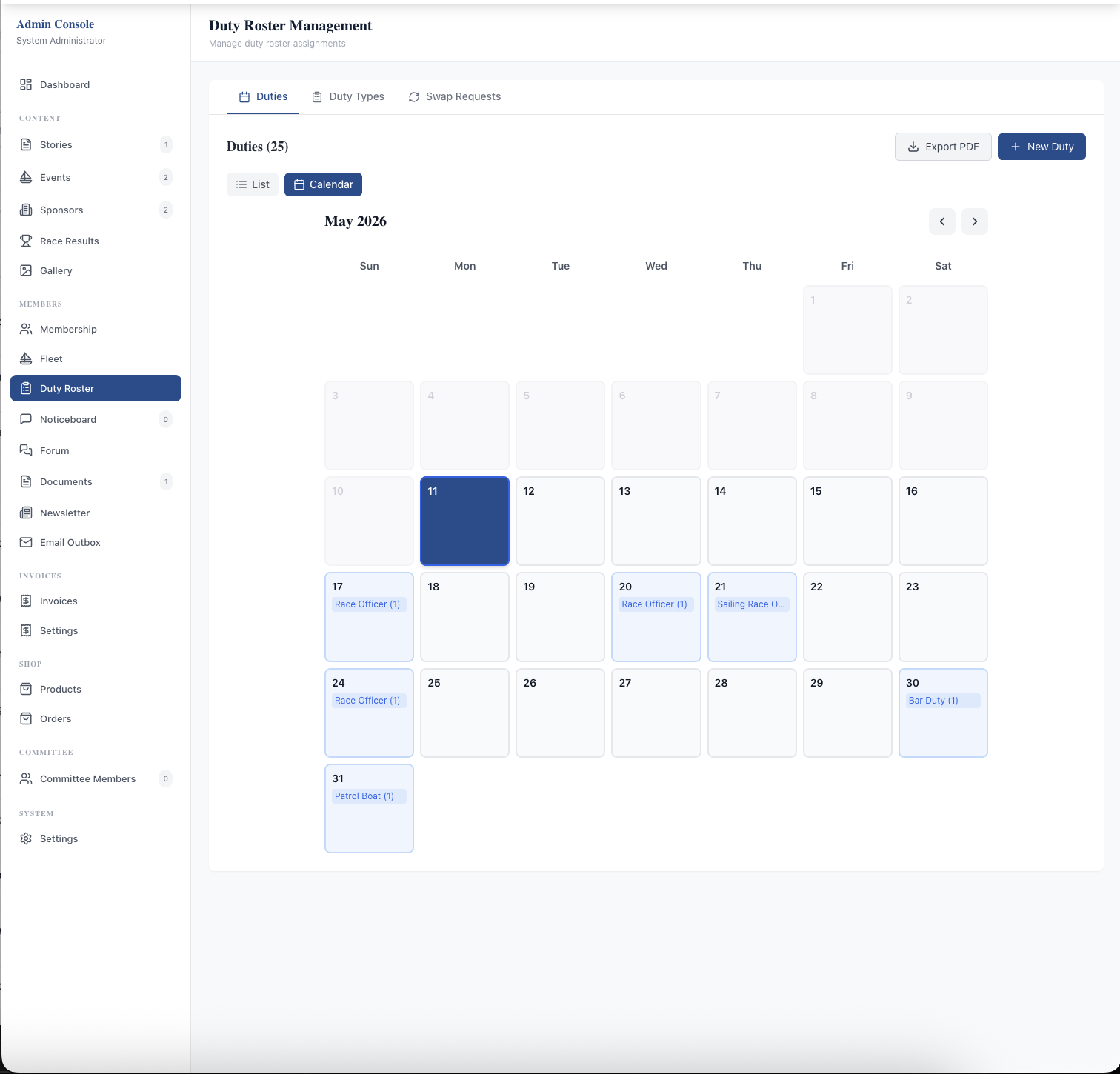
The duty list is useful for editing, but the calendar view is where you spot the gaps. Switch from List to Calendar and each day shows which duty types are covered and how many people are on each. A Saturday with a race officer but no safety boat stands out immediately.
What your members receive
This is the part that saves the most chasing. When you assign a duty, the member gets an email with the duty, the date and the times. If you later change the duty or remove them from it, they are emailed about that too.
After that, reminders go out automatically at three points: 14 days before the duty, 7 days before, and 24 hours before. Two weeks gives people time to arrange a swap; the final reminder catches anyone who has forgotten. You don't have to schedule anything.
In the members area, each member sees their own upcoming duties alongside the rest of the roster. Members can turn duty emails off in their email preferences if they really want to, so it is worth mentioning in your season briefing that the reminders are there to help them.
Swaps between members
Swaps are where paper and spreadsheet rosters fall apart, and where the duty co-ordinator usually ends up as a go-between. In Yacht Clubs Manager, a swap is arranged member to member:
- A member who can't make their duty picks another member's duty of the same type (a race officer duty for a race officer duty, a bar duty for a bar duty) that they could do instead, adds a short note, and sends a swap request.
- The other member sees the request in their members area, showing both duties side by side, and is emailed about it.
- If they accept, the swap goes through straight away: each person now holds the other's duty, and both are told. Any other pending requests involving those duties are cancelled.
- If they reject it, the requester is told and can try someone else.
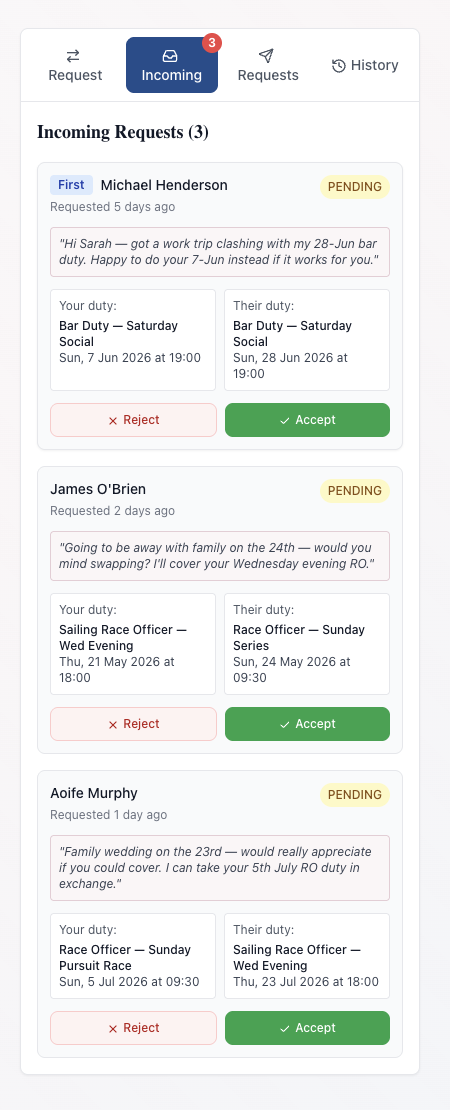
A few rules keep this tidy. A swap is always a trade, so every duty stays covered; nobody can simply hand a duty away. A request that isn't answered within 7 days expires, and both people are told, so nothing sits in limbo. Swaps can't be made within 24 hours of either duty, so the roster is settled the day before, and each member can have at most five swap requests waiting at once. You can see every swap request, and its outcome, on the Swap Requests tab in the admin console, which is useful when someone says "but I swapped that".
For a member-facing explanation you can share with your club, see how to swap a sailing club duty.
On the day: done or no-show
After each duty, mark it as completed or as a no-show, with a note if you want one. This takes seconds and gives you a simple record over the season. When it comes to setting next year's roster, or a quiet word with someone who has missed three duties, you have the facts rather than a hazy memory.
Printing the roster
Not everyone lives in their inbox, and a printed roster on the clubhouse noticeboard is still useful. Export PDF lets you choose a date range, and optionally a single duty type, and produces a clean agenda-style list you can print or attach to your newsletter.
Who can manage the roster
You don't need full admin access to run duties. Your club's administrators can give you duty roster permission on its own, so you can manage duty types, duties and swaps without seeing invoices or member records you don't need. If you are the person handing out committee access, our guide to committee roles and permissions covers how that works.
A season-start checklist for the duty co-ordinator
- Review your duty types and their requirements notes.
- Create the season's duties from the sailing programme, selecting several people at once where needed.
- Add any helpers who aren't members as external people, with an email where you have one.
- Check the calendar view for empty days.
- Tell members at the start of the season that reminders will arrive 14 days, 7 days and 24 hours ahead, and that swaps are done in the members area.
- Mark duties done or no-show as the season goes on.
- Export a PDF for the noticeboard each month.
The duty roster sits alongside everything else your members use, so they see their duties in the same place as their invoices and club news. Read more about the duty roster feature, or see how it fits into the wider members area.
Like the read? See it running with your club's data — book a demo.