Get Yacht Clubs Manager running at your club. Book a 20-minute walkthrough.
If you are your club's treasurer, you probably took the job on top of a day job and your own sailing. The work itself is not complicated: send people bills, see who has paid, chase the ones who haven't, and give the committee and the AGM an honest picture of the money. What makes it hard is doing all of that across a spreadsheet, a bank app and an inbox. This guide walks through how yacht club treasurer online invoicing works in Yacht Clubs Manager, from the first batch of subscriptions to the year-end figures.
Before you send anything: settings and categories
Invoices are created in the admin console, and they need your club's Stripe account connected first (it is linked from Settings, and card payments go straight into that account). Once that is done, spend half an hour on the invoice settings. They decide what every invoice and PDF looks like:
- your club's name, address, contact details, logo and any registration number;
- bank details for transfers (account name, sort code and account number, plus IBAN and BIC if you need them);
- who cheques should be made payable to, and any instructions;
- default payment terms in days, a payment note and footer text for the PDF;
- whether card, bank transfer and cheque are offered by default;
- the wording of the invoice, reminder, overdue and payment-received emails.
Next, set up your revenue categories: subscriptions, moorings, boatyard, bar, events, whatever your club actually earns money from. Each category can carry a nominal code and a VAT treatment, and every invoice line is tagged with one. That tagging is what later lets you answer "how much did winter storage bring in?" without a pivot table.
If your club is registered for VAT, switch that on and enter your VAT number. You can then set a VAT rate on each line, and the VAT number and totals appear on invoices and credit notes. While VAT registration is off, the system will not let anyone add VAT to a line by mistake, and no VAT appears on documents.
Single invoices and batch invoices
A one-off invoice (a mooring, a crane lift, a replacement key fob) is created against a member with one or more line items, each with a description, quantity, price, category and VAT rate. You can add notes the member will see and internal notes they won't, and choose which payment methods that invoice allows.
For subscriptions and other charges that go to many people at once, use batch invoicing:
- Pick the members to invoice.
- Choose the category and due date, and add the line items.
- Add member-facing notes and internal notes, and tick the payment methods you'll accept.
- Choose whether to send the invoices straight away or keep them as drafts to check first.
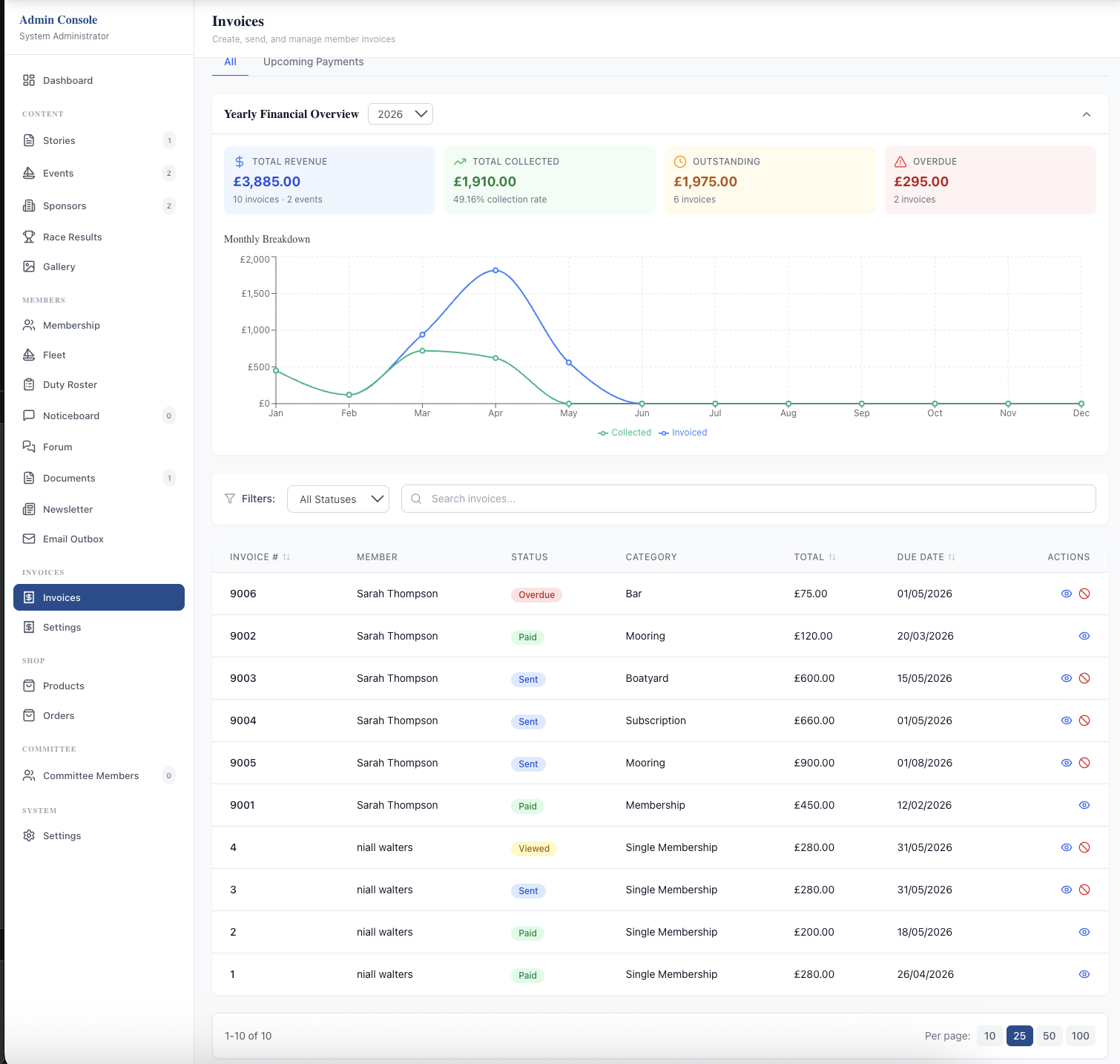
Each member gets their own invoice with its own number, and the invoice list shows its status as it moves through draft, sent, viewed, paid or overdue. "Viewed" is useful: it tells you the member has opened it, which is a different conversation from someone who hasn't seen it at all.
If your club wants renewals raised automatically each year, that is a separate set of options, all off until you turn them on, including pro-rata joining invoices for new members. See choosing your renewal settings before switching anything on.
How members pay
Members see their invoices in the members area and can download each one as a PDF. From there they have several routes, depending on what you allowed on the invoice:
- Pay by card. A single card payment through Stripe, straight into the club's own account; the invoice is marked paid automatically.
- Bank transfer. The invoice shows the references to use, and the PDF has your bank details. After paying, the member presses "I've paid" and the club's admins get a notification, so you know to look for it on the statement.
- Cheque or cash. Still possible where you allow it; you record it yourself (see below).
Online payment is by card only; there is no Direct Debit. The club pays Stripe's processing fees on card payments; they are not added to the member's bill. The member-side view is covered in more detail in paying your club subscription online, which is worth sending to members at renewal time.
The invoice PDF
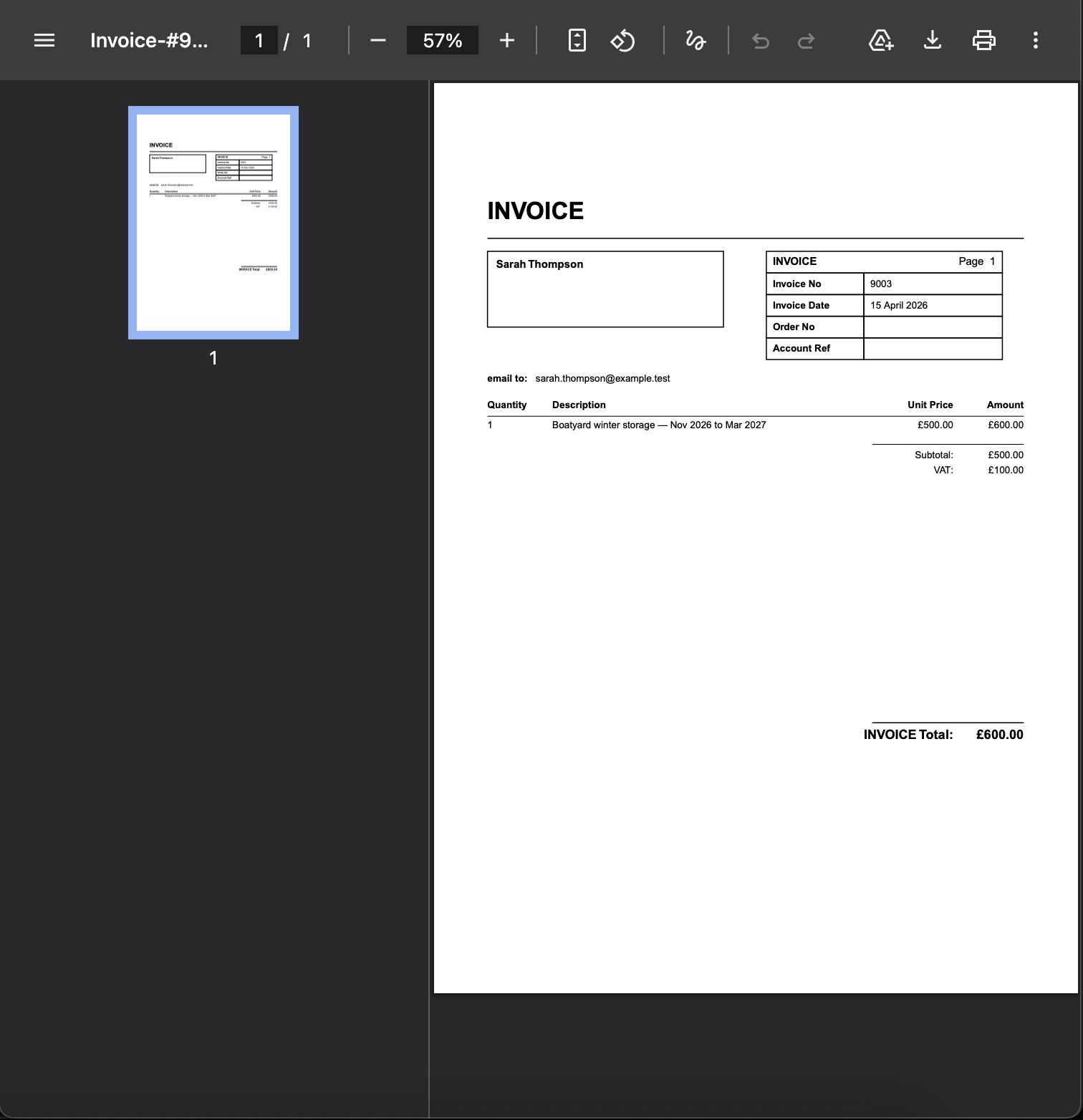
Every invoice can be downloaded as a PDF, by the member from the members area and by you from the admin console. It carries the invoice number and date, the member's name and email, each line with its price and VAT, and the total, along with the club details, logo, bank details, cheque instructions and footer text from your invoice settings. That matters more than it sounds. Some members still want a document to file with their own records, and an independent examiner will want to see what was actually issued.
Because the PDF comes straight from the invoice record, it always matches what the member sees online and what appears in your reports. There's no separate Word template to keep in step, and no risk of the bank details on last year's template being out of date.
Reminders and overdue invoices
Chasing is the part of the job most treasurers dislike, so let the system do the routine part. In the invoice settings you can:
- Turn on payment reminders and choose how many days before the due date they go out (you can pick more than one point).
- Set an overdue grace period: how many days after the due date an invoice counts as overdue.
- Let the system send an overdue notice when an invoice tips over that line.
A daily job checks for overdue invoices and sends the reminders, and it keeps a record so nobody gets the same reminder twice. You can still send a reminder by hand for any invoice when a personal nudge is more appropriate.
Recording payments and handling refunds
When a transfer lands, or someone hands over a cheque at the bar, open the invoice and record the payment: amount, method (bank transfer, cash, cheque or other), date, reference and any notes. Part-payments are fine; the invoice shows what has been paid and what is outstanding. If you record something by mistake you can remove that payment again.
Refunds are made from the invoice with a reason, which is kept for the audit trail. A card payment is refunded back through Stripe. On an invoice that combines several charges, such as membership plus a mooring, you can refund just one line rather than the whole thing. Fully refunded invoices are shown as refunded, not simply cancelled, so they don't look like bills that were never paid.
The yearly overview, reports and exports
At the top of the invoice list is a yearly financial overview: total revenue, total collected, outstanding and overdue, refunds, and a month-by-month chart of invoiced against collected. That is most of what a committee meeting needs, and you can switch between years.
For anything deeper there is an income report by revenue category, and exports to CSV or Excel: the invoice list and the individual invoice lines (useful for category-level analysis). Hand those to your independent examiner or auditor, or use them to prepare the AGM accounts.
If your club keeps its books in Xero, you can optionally connect it so invoices, payments, fees and refunds flow across automatically. That is a topic of its own, covered in Stripe and Xero for club treasurers.
Handing over to the next treasurer
When you step down, the records stay with the club rather than on your laptop. The next treasurer can be given invoice permissions without full admin access to everything else, and they inherit every invoice, payment and refund on the club's own records. That makes the handover a matter of walking them through the screens rather than copying spreadsheets.
You can see the full list of invoicing and payment features on the invoicing and payments page, and how invoices fit with member records on the member management page.
Like the read? See it running with your club's data — book a demo.